
Who has admin access to your NetSuite account right now, when did they last log in, and what can they actually touch? None of these questions are “hard” to answer inside of NetSuite. We could pull together an employee search with a login audit trail and have something you can use pretty easily. But what if you have vendors or partners with access too? Now it becomes a little trickier. So instead of going that route, we tested using the MCP connector in NetSuite with Anthropic’s Claude.ai to pull the information in just a few seconds.
This is the last post in our AI + NetSuite series, and it’s a fitting one to close on. Every prior post here has been about getting an answer faster. This one might not be about getting it faster — but it’s certainly about getting it easier.
What We Asked
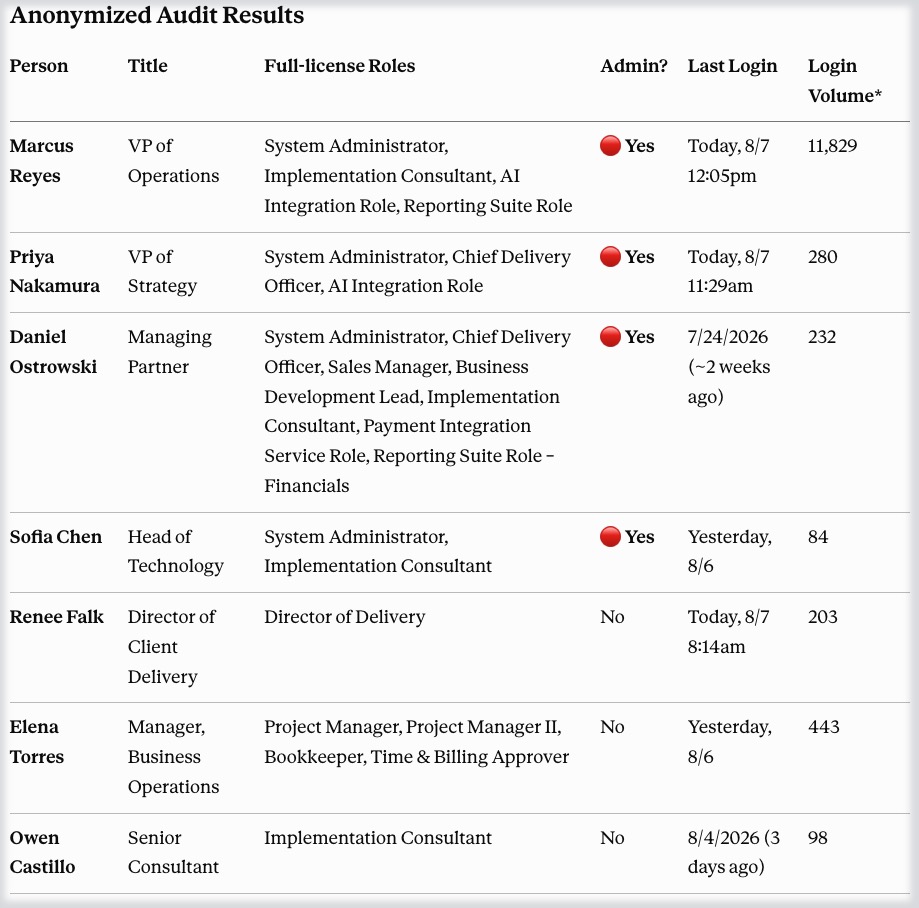
I asked for every full-license role holder in the account (for my use case I didn’t care about anyone using the employee or vendor center), whether they carried Administrator access, and their most recent login. The AI worked out how to get there itself — I didn’t write or check any query logic. What came back: a full list of all our fully licensed users as well as their access level in one easy-to-read table.
We did initially run into a familiar error when we first ran the test — the login audit trail piece didn’t come back clean on the first try. The integration role connecting Claude to NetSuite didn’t have permission to see the Login Audit Trail by default, so the first pass returned partial results. Fortunately, Claude returned the exact error that NetSuite gave it, and resolving it was a simple matter. I granted that specific permission to our MCP role and reran the same question. Second time through, it had full login history by role, matched to each person.
This calls out a really essential piece to the whole MCP architecture in NetSuite that we’ve called out time and again — the AI only has access to the things you allow it access to via the role you connect it with. Be very careful with any role you give MCP access to that you want the AI to be allowed to do everything that role can do. When in doubt, create a copy of that role and switch all the permissions to view only.
What Almost Got Missed
The audit also caught something worth flagging on its own. One entity in the role data had an unusual internal ID — the kind of value that, at a glance, looks like a placeholder or system account rather than a real person. The AI almost let it go — but then, without having to check with me, it performed a direct check against the employee record and confirmed it belonged to an active executive with real admin rights, not a system artifact.
Leaving it out would have quietly dropped a live admin account from the audit. It’s something I would have caught when reviewing the results, because our sample set of data wasn’t too large — but this is the same lesson we’ve hit elsewhere in this series: fast answers are only as good as the verification behind them. Don’t take the first result at face value if something looks off.
Takeaway
This closes out our AI + NetSuite series. The thread running through all six posts is the same: AI connectors are genuinely fast for this kind of ad-hoc question, and permissions are doing real work behind the scenes, quietly limiting what gets touched or seen. Neither of those replace judgment. You still have to look at what comes back and ask whether it makes sense.
Curious whether your team has a real-time picture of who has access to your NetSuite account? We’re happy to talk through it. Book a free consultation or reach out and we’ll take a look at what’s possible in your NetSuite environment.
This post closes out our AI + NetSuite series — a hands-on look at what AI can actually do inside a live NetSuite account.